Features

Everything between a question bank and a finished resource.

Examly is not a place to download past papers. It is a tool for building assessments and resources from SQA questions, with the marking instructions beside you every step of the way.

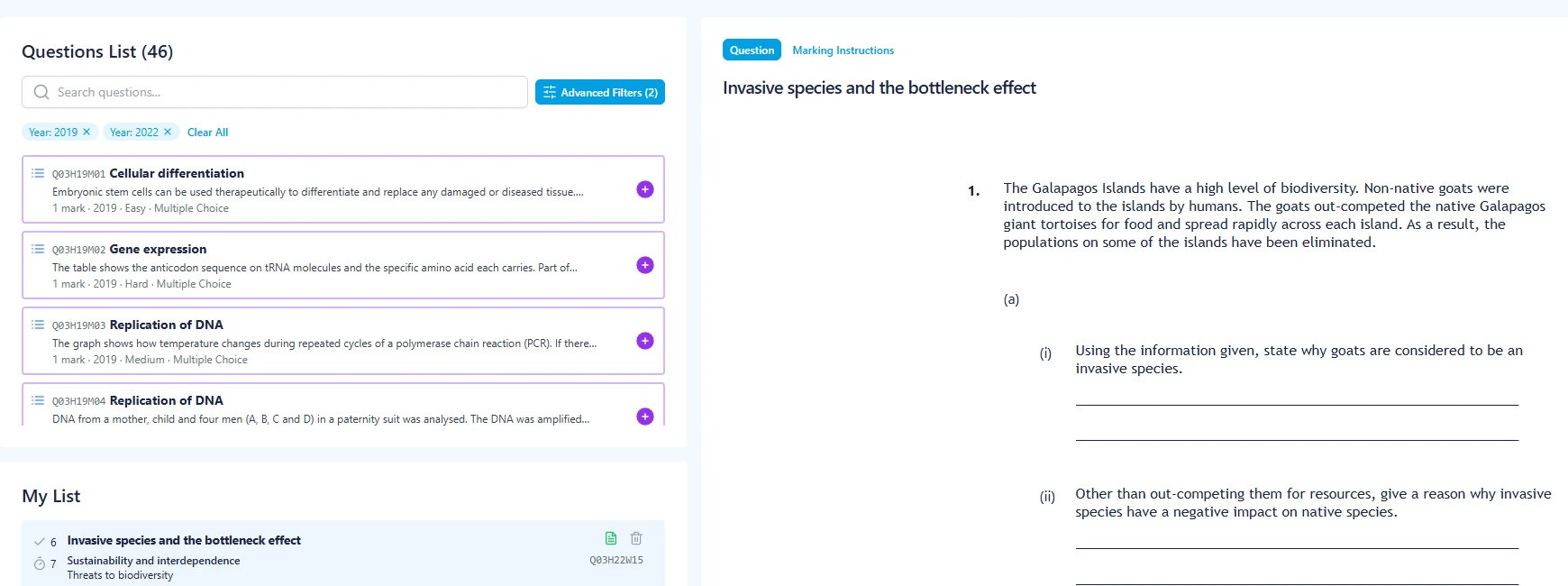
The Examly paper builder: a Higher Biology question bank filtered by year, with a multi-part written question previewed beside the list.

1 · SQA question bank

Start from real SQA questions, not a blank page.

The question bank covers National 5 and Higher Biology, Chemistry and Physics, with questions from 2017 onwards. Every question comes with its marking instructions.

  • Browse by unit, or search and filter to narrow the bank down
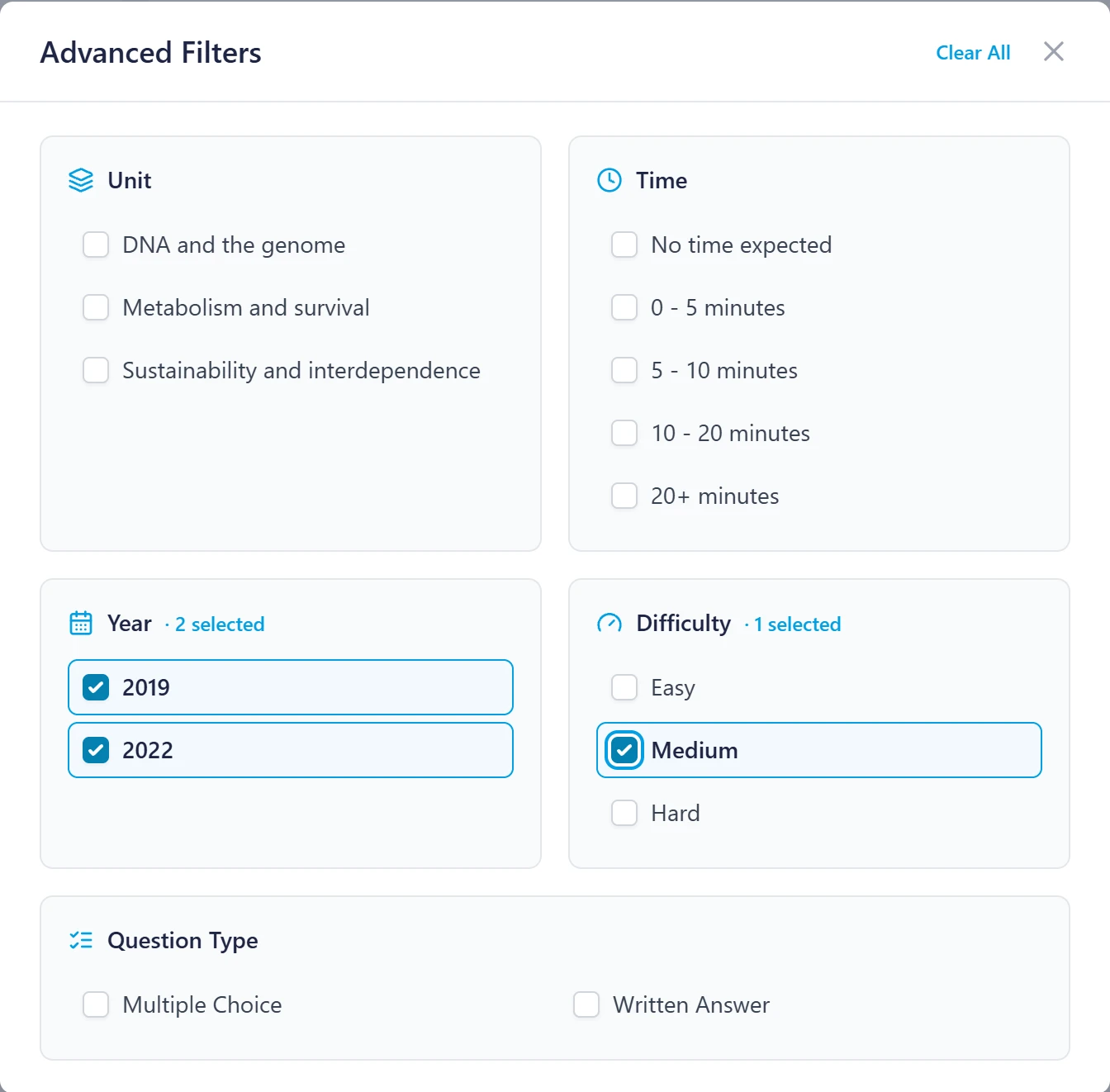
  • Each question shows its marks, expected time, year, difficulty and type (multiple choice or written)
  • Multi-part questions are kept together, with their parts and total marks

What it means for you: you spend your time choosing the right questions, not hunting for them.
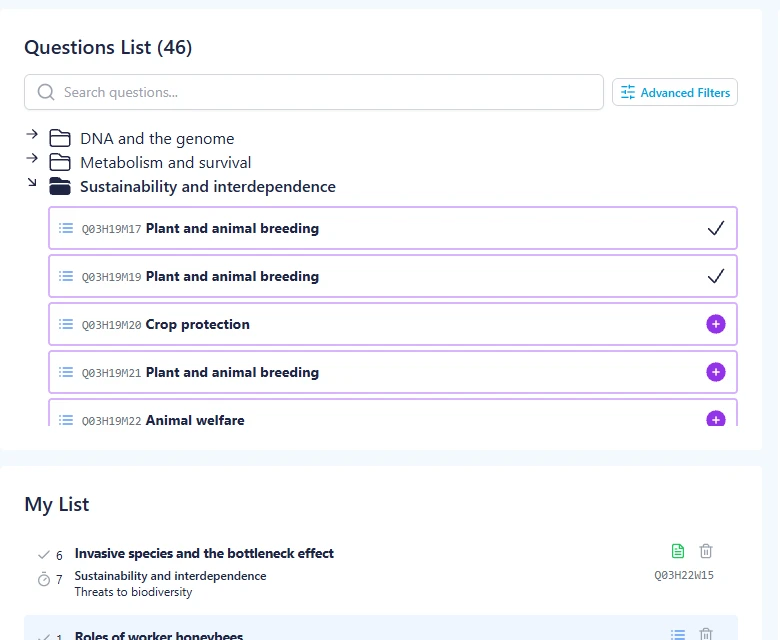
The Examly question bank: questions grouped by unit on the left, with a question preview and the paper's list beside them.

3 · Question and marking instruction previews

Check the question and its marking instructions together.

Open a question in your paper to see it as it will print, then switch to its marking instructions without leaving the page.

  • The preview shows the question with its marks, expected time, unit and topic
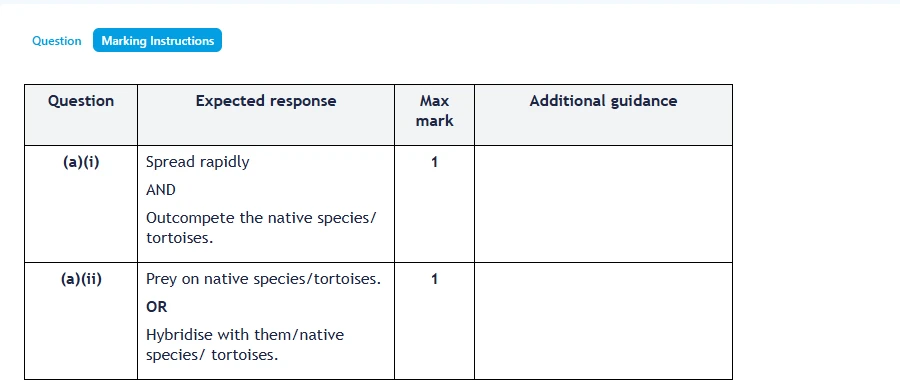
  • A Marking Instructions tab shows the marking points for the same question
  • Multi-part questions preview as a whole, with parts (a), (b) and so on

What it means for you: you know how a question will be marked before it goes in front of a class.
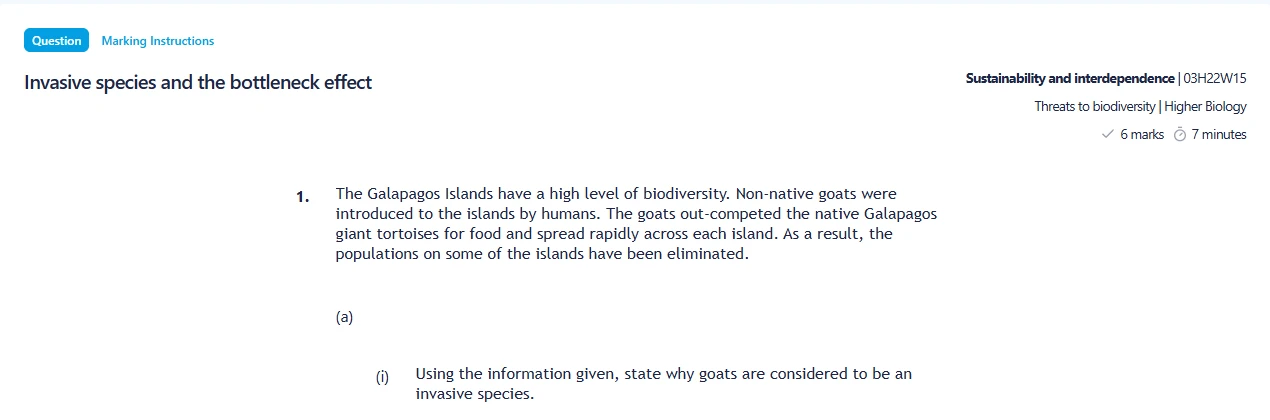
A question preview: “Invasive species and the bottleneck effect”, Higher Biology, Sustainability and interdependence, 6 marks, 7 minutes, with the opening of the question.
The Marking Instructions tab for the same question: a table of the expected response, maximum mark and additional guidance for each part.
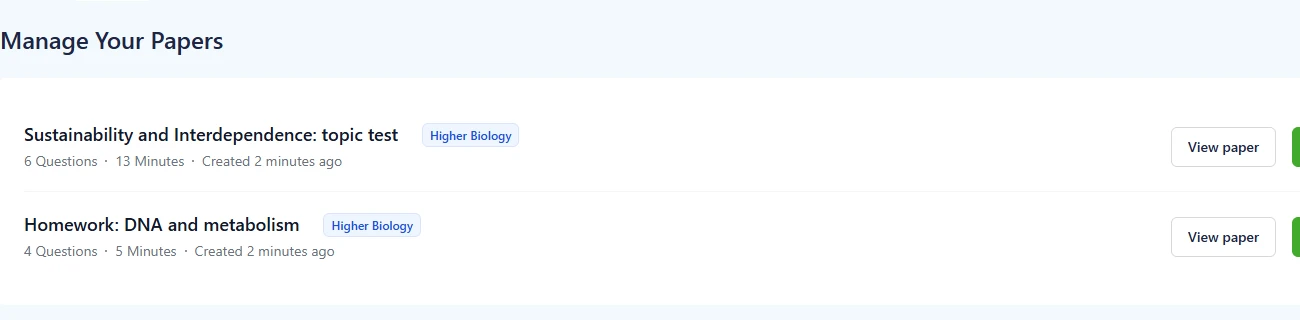
The My Papers page: a list of the teacher's papers with view, copy, share, edit and delete buttons, and a form to create a new paper with a title and subject.

4 · Paper and resource builder

Build unit tests, homework and revision resources.

Create a paper by giving it a title and choosing a subject, then add the questions you want. Your paper’s list keeps a running total of marks and time as it grows.

  • Add a question with the purple + on its card; a tick shows it is already in your paper
  • Edit the paper’s title, sub-title and description in place
  • Copy a paper into My Papers to adapt it, for example to make a version for a different group

What it means for you: a good test is something you adapt and reuse, term after term.

5 · School paper sharing

Share papers with colleagues in your school.

Share a paper with your school and colleagues who teach the subject can find it under School Papers. They can view and download it, and it stays yours.

  • Sharing is with colleagues within your school, not with students or other schools
  • Colleagues cannot edit or delete the paper you shared
  • You can stop sharing at any time

What it means for you: one teacher’s good work benefits the whole department.
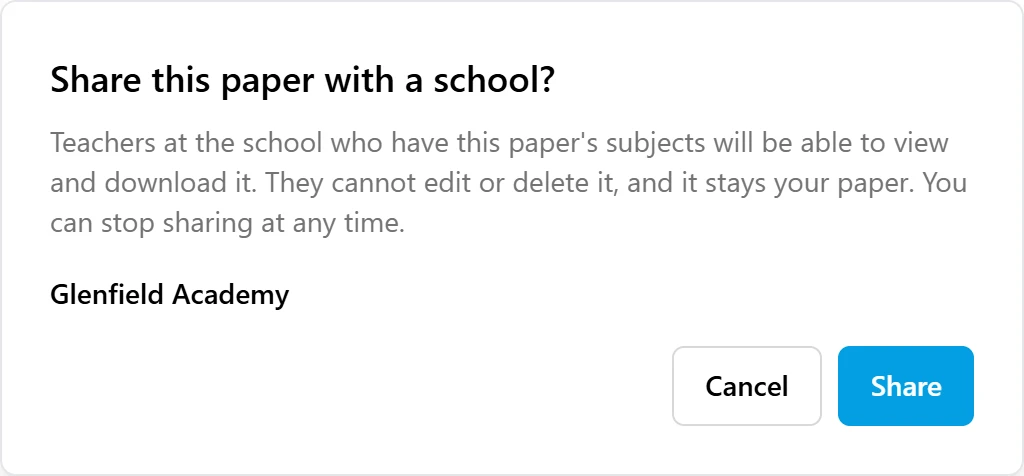
A dialog offering to share the paper with a school, explaining that colleagues can view and download it but cannot edit or delete it.
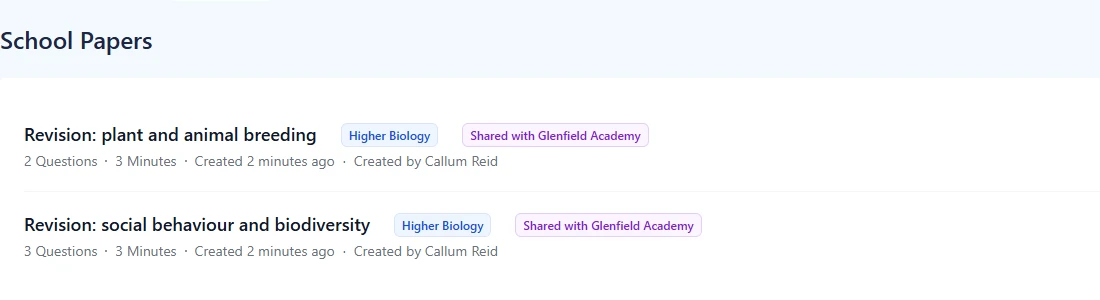
The School Papers page listing a paper shared by a colleague, labelled as shared with the school.
The My Favourites page with two saved papers, each with copy, remove-favourite and view buttons.

6 · Favourite papers

Keep the papers you come back to.

Mark a paper as a favourite and it appears in My Favourites. From there you can open it, copy it into your own papers to adapt, or remove it from your favourites.

What it means for you: your most useful papers are one click away, including ones a colleague has shared.

7 · Cover pages and school branding

Papers that look like they came from your school.

Every Word export has a professional cover page, filled in for you: your school’s logo and name, the teacher’s name, the assessment title, total marks and time, and boxes for mark, percentage and grade.

  • The school’s logo is uploaded once by a school administrator (PNG or JPEG)
  • Teachers choose whether their own name appears on the cover
  • Teachers can use the school’s logo but cannot change it

What it means for you: consistent, professional-looking assessments across the school.
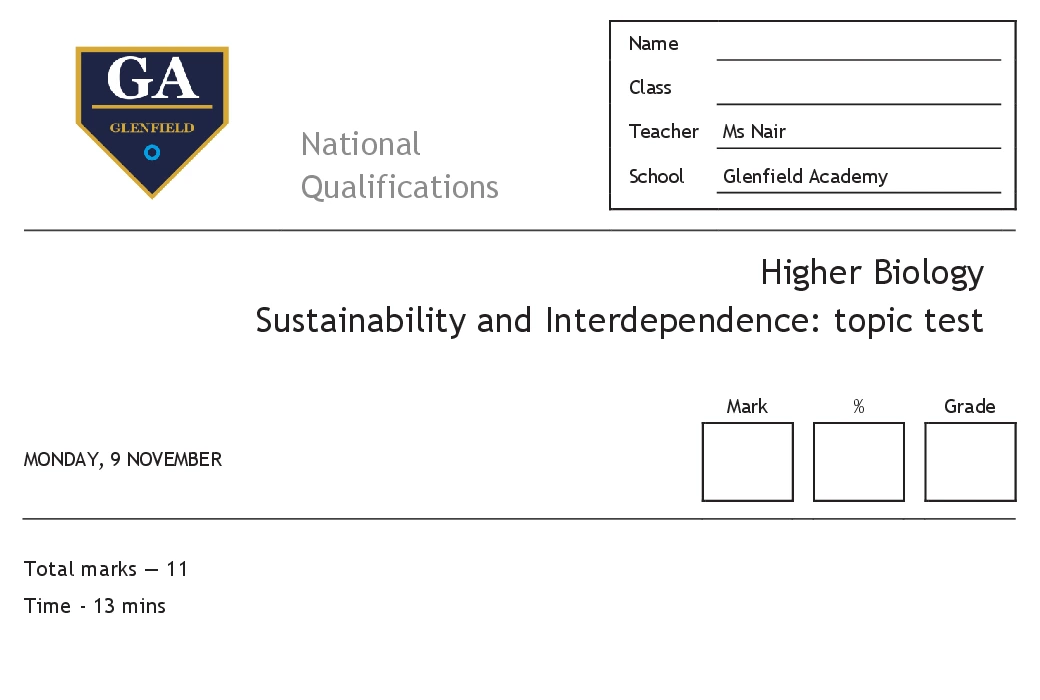
An exported cover page with a school crest, teacher name, school name, assessment title and boxes for mark, percentage and grade.
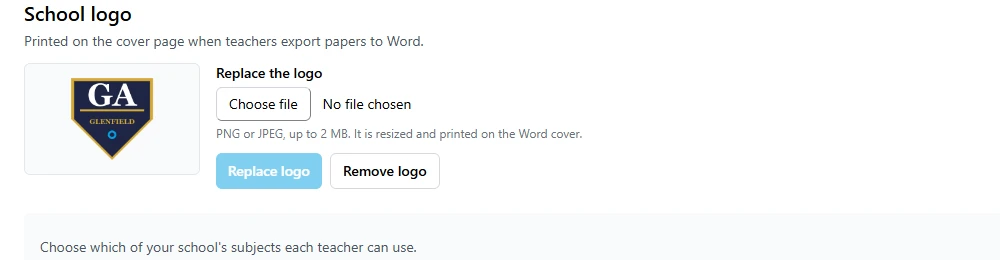
The School Details page where a school administrator uploads, replaces or removes the school logo shown on exported cover pages.
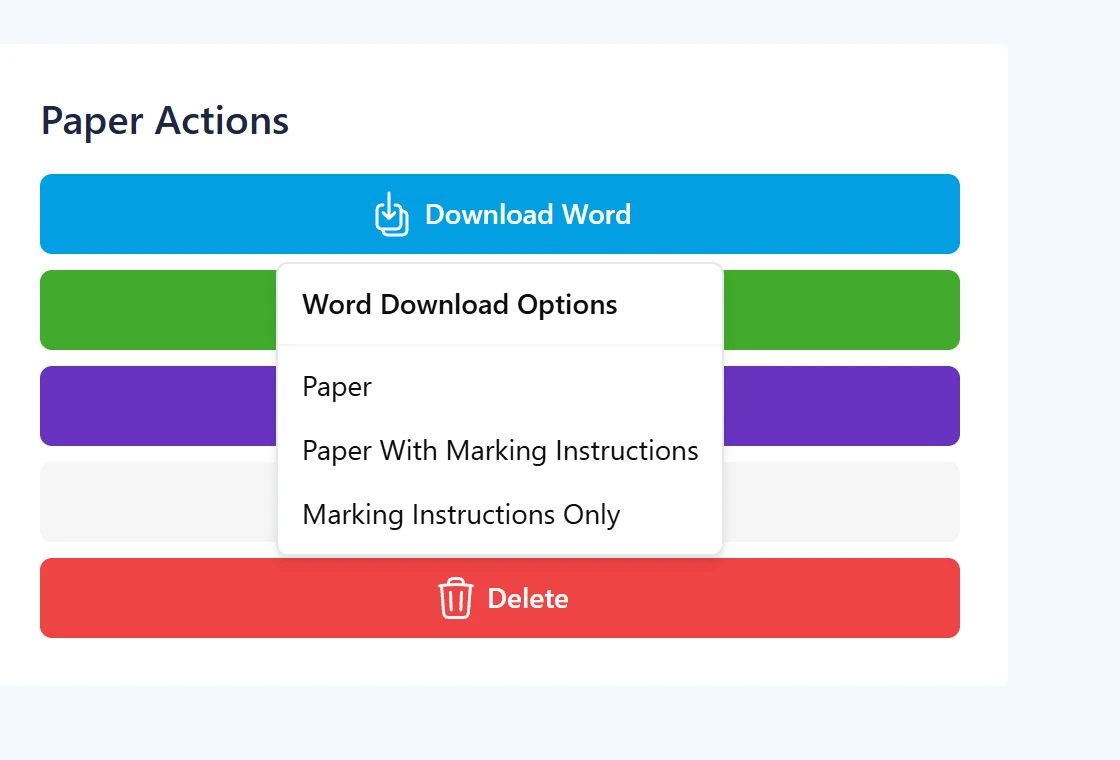
The Word download options menu: Paper, Paper With Marking Instructions and Marking Instructions Only.
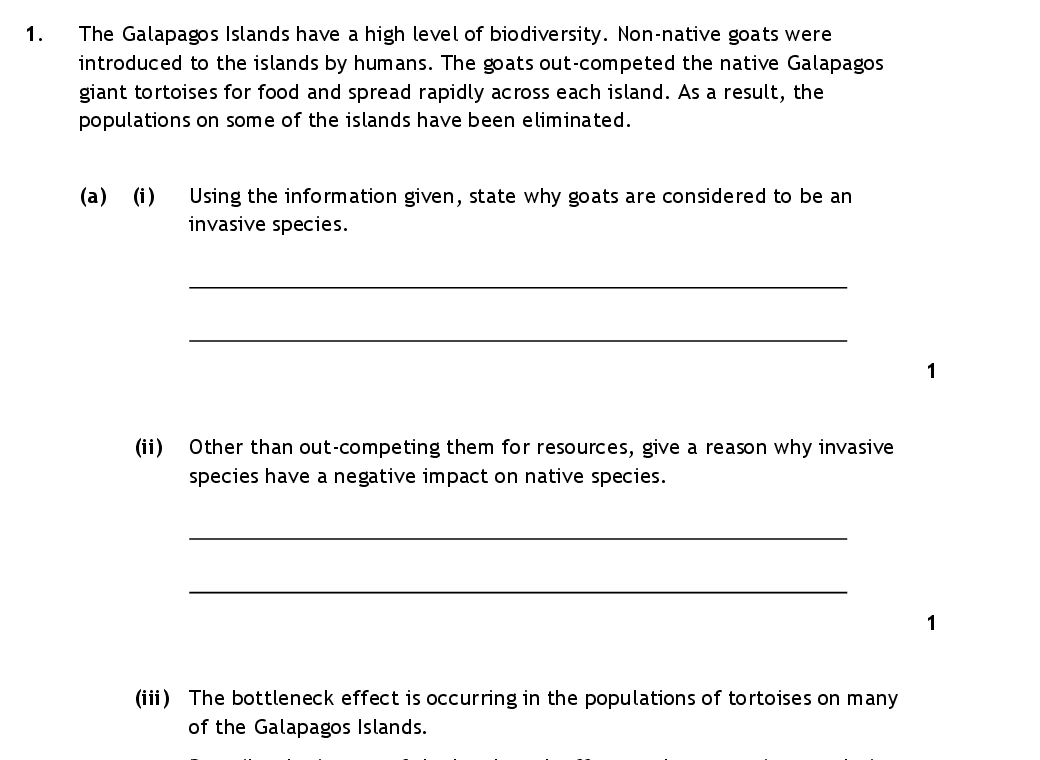
An exported question page: a multi-part written question with answer lines and the marks shown at the right.
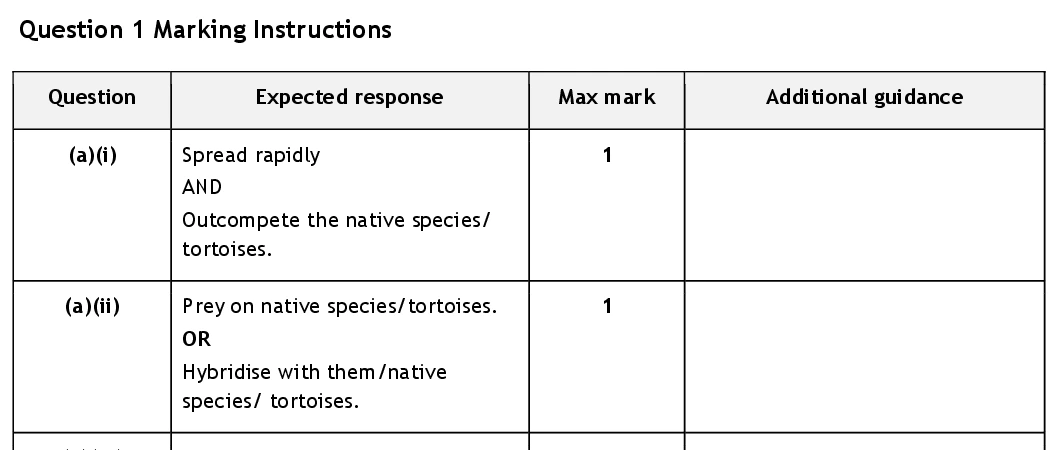
Exported marking instructions: the marking table for a written question, with expected response, maximum mark and additional guidance.

8 · Microsoft Word exports

Export to Word, ready to print or edit.

Examly builds a properly formatted Word document. Print it as it is, or open it in Word to adjust it further.

  • Paper: the questions, with marks, ready to give to a class
  • Paper with marking instructions: the paper followed by its marking instructions
  • Marking instructions only: including a multiple-choice answer list

What it means for you: no copying and pasting, and no reformatting before it can go in front of a class.

All screens and documents on this page are real Examly captures of questions from the question bank, shown with a sample school.

Ready to build your next assessment in minutes?

See Examly in action, or ask about access for you or your school.

Already using Examly? Log in